
How to Use Bitwarden Password Manager: Quick Start Guide
What Is Bitwarden
Bitwarden is a password manager that lets you securely store the passwords you use most often. This stored collection of logins is called your Vault.
You can reach your vault three ways: a web-based URL, a browser extension, or a desktop or mobile application. All three require signing in with your Master Password.
Download Bitwarden or Add the Browser Extension
Desktop and mobile apps (iPhone, Android, Windows, Mac, Linux): https://bitwarden.com/download/#downloads-desktop-applications
Web-based vault: https://vault.bitwarden.com/#/login
Browser extension for Microsoft Edge: https://microsoftedge.microsoft.com/addons/detail/bitwarden-password-manage/jbkfoedolllekgbhcbcoahefnbanhhlh?hl=en-US
Browser extension for Google Chrome: https://chromewebstore.google.com/detail/bitwarden-password-manage/nngceckbapebfimnlniiiahkandclblb?hl=en-US
The browser extension is the option most people use day to day, since it can fill in usernames and passwords directly on the login page instead of requiring you to copy and paste from the app or web vault.
Logging In and Unlocking Your Vault
Once Bitwarden is installed, open the extension, app, or web vault and enter your email address.
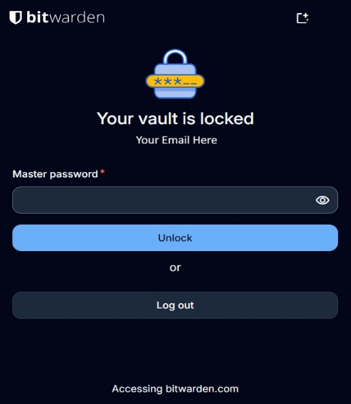
Enter your Master Password when prompted and select Unlock to access your vault. Here is what that screen looks like in the browser extension:
Your Master Password is the one password that unlocks everything else, so treat it differently than any other login — see the do's and don'ts below.
Do's: Best Practices for Using Bitwarden
Don'ts: What to Avoid
Getting Help
If you're locked out of your vault, unsure which vault to use, or run into an issue setting up Bitwarden, our team can help.