
Nitro QuickSign Greyed Out: How to Restore It

Troubleshoot an unavailable QuickSign button in Nitro PDF Pro for Windows. Check document restrictions, existing digital signatures, and the local Stamps folder.

Remote Desktop & Applications
KB-20261008-NITRO-QUICKSIGNUpdated October 8, 20265 minutesNTS Support Team

Quick Answer

First, test another PDF to see whether QuickSign is disabled in one document or every document. For one PDF, check File > Document Properties > Security and any existing digital signatures. For every PDF, close Nitro and rename the Stamps folder in your version's %appdata%\Nitro\Pro\ folder to Stamps_Old, then reopen Nitro and test. If the problem continues, repair the Nitro installation and restart Windows.

Nitro QuickSign Greyed Out: How to Restore It

Start Here: One PDF or Every PDF?

Nitro Software logo

This guide applies to Nitro PDF Pro on Windows when the QuickSign option is greyed out or unavailable. Menu labels and version folders may differ between releases.

QuickSign places an electronic copy of your signature on a PDF. It is different from a certificate-based digital signature, which can protect a document from further changes.

1.Open the PDF where QuickSign is unavailable.
2.Open a second PDF that you know permits editing and check QuickSign again.
3.If only the original PDF is affected, follow the document checks below. If every PDF is affected, go to Reset the Local Stamps Folder.

Check Document Restrictions

1.With the affected PDF open in Nitro, select File > Document Properties.
2.Select the Security tab and review the allowed actions, especially Change document and signing permissions.
3.If changing the document or the required signing action is Not Allowed, the PDF's restrictions may prevent QuickSign. Ask the document owner for a copy that permits the action you need.

The source example below has Change document set to Not Allowed while Sign digital signatures remains Allowed. Those are separate permissions; permission to add a certificate signature does not necessarily permit a QuickSign stamp.
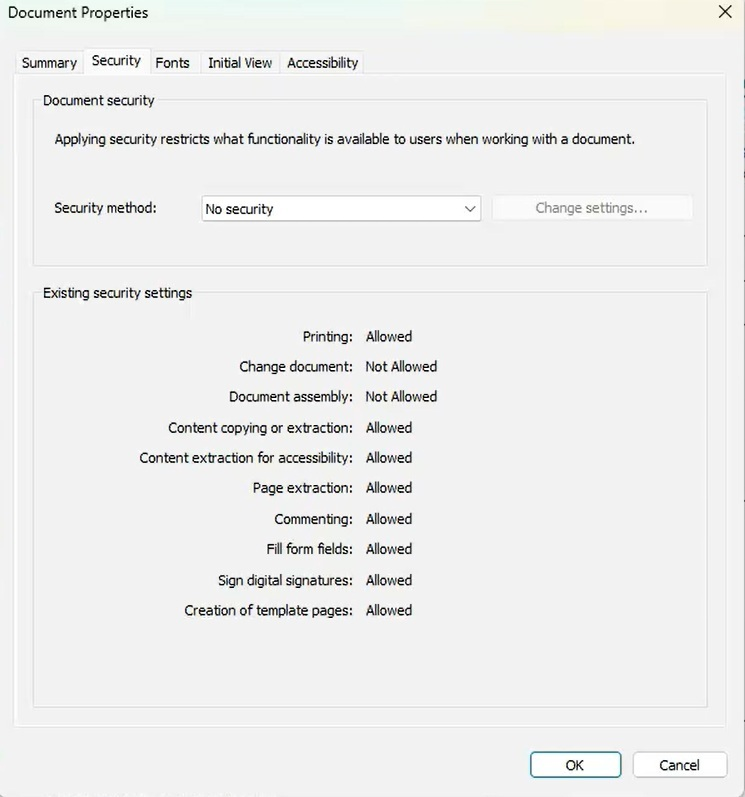
Nitro Document Properties Security tab showing Change document as Not Allowed, with page extraction and digital signatures allowed

Extract Pages into a New Copy When Permitted

The NTS troubleshooting procedure includes extracting pages into a new PDF as a possible workaround. Use this only when page extraction is allowed and the document owner permits you to create and sign a separate copy.

Note: An extracted PDF is a new document. It does not preserve the original document's certificate signature validation. Keep the original, and use an unsigned copy from the sender when an existing digital signature must remain valid.
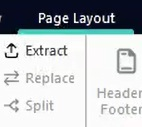
1.Select the Page Layout tab and choose Extract.
Extract command on Nitro's Page Layout tab
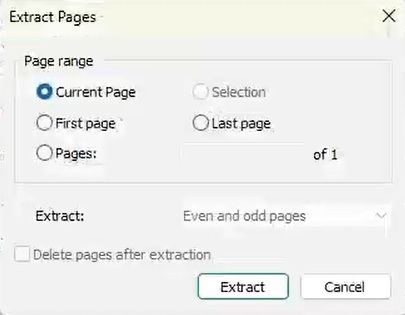
2.Choose the pages you need: the current page, first page, last page, or specific page numbers.
3.Leave Delete pages after extraction unchecked so the original keeps its pages, then select Extract.
Nitro Extract Pages dialog with page selection options and Delete pages after extraction unchecked
4.In the new PDF tab, check whether QuickSign is available. If it is, apply your signature and save the new PDF with a different file name.
5.If extraction is blocked or QuickSign is still unavailable, request a signable copy from the document owner.

Check for an Existing Digital Signature

A PDF signed with a certificate-based signature, including one created in Adobe, may restrict further changes to preserve its signed state.

1.Save any other open work, close the affected document, and exit Nitro completely.
2.Reopen Nitro and the document, then check QuickSign at the page where you need to sign.
3.If the document remains restricted, ask the sender for an unsigned copy or a document prepared to accept additional signatures.

Reopening Nitro is a troubleshooting check; it does not remove signature restrictions. Avoiding an existing signature on screen does not make a locked document editable.

Reset the Local Stamps Folder

If QuickSign is greyed out in every PDF, try the local Stamps-folder reset from the NTS support procedure.

1.In Nitro, select Help > About Nitro and note your version number.
2.Save your work and close Nitro PDF Pro completely.
3.Press Windows key + R to open Run, enter the following path, and press Enter:
%appdata%\Nitro\Pro\
4.Open the folder matching your Nitro version, such as 14.0 or 20.0.
5.Find the Stamps folder and rename it to Stamps_Old. If Stamps_Old already exists, use another backup name such as Stamps_Old_2.
6.Close File Explorer, reopen Nitro, and test QuickSign with a PDF that permits editing.

Note: Renaming keeps the original folder as a backup. Previously saved stamps or QuickSign signatures may need to be recreated. Keep the backup until you have confirmed the reset worked. If the version folder or Stamps folder is missing, contact support rather than changing unrelated folders.

Repair the Nitro Installation

If QuickSign remains unavailable across PDFs after resetting the Stamps folder, repair Nitro PDF Pro.

1.Save your work and close Nitro.
2.Open Windows Control Panel > Programs and Features.
3.Locate Nitro Pro or Nitro PDF Pro, right-click it, and select Change.
4.Run the Repair option and follow the prompts. You may need administrator access.
5.Restart the computer, open Nitro, and test QuickSign again.

If your installation does not offer Change or Repair, contact your IT team for help.

Confirm the Fix or Get Help

Paige Baldwin on the Network Thinking Solutions team solved this issue for a client. This guide shares the troubleshooting steps to help others experiencing the same problem.

Once QuickSign is available, test on a permitted copy: place the intended signature, save the PDF, and reopen it to confirm the signature appears.

If the issue continues, send NTS Support your Nitro version, whether one PDF or all PDFs are affected, the relevant Security-tab permissions, and which steps you tried.

Request remote support from NTS

References

Adapted from the NTS support procedure, Quick Sign Unavailable in Nitro, dated October 8, 2026. The Stamps-folder reset and installation repair steps come from that procedure.

Nitro's QuickSign guide: https://www.gonitro.com/user-guide/pro/article/stamp-your-signature-with-quicksign

Nitro's guide to digital signatures and document restrictions: https://www.gonitro.com/user-guide/pro/article/how-to/digitally-sign-a-pdf-file

Related Articles

Email Management

Viewing Email Headers for Troubleshooting and Security Analysis

Learn when to request full email headers, what they reveal about message delivery, and how to capture them in common mail clients before you open a support ticket.

Read article: Viewing Email Headers for Troubleshooting and Security Analysis
Security

CrowdStrike Falcon Alert: Vulnerable Driver Detected (AMD Graphics) — Remediation Runbook

How to respond when CrowdStrike reports a vulnerable driver was loaded on a Windows endpoint, including safe AMD graphics driver update steps and post-remediation validation.

Read article: CrowdStrike Falcon Alert: Vulnerable Driver Detected (AMD Graphics) — Remediation Runbook
Remote Desktop & Applications

Rent Manager "Access Denied" Error Over Remote Desktop: How to Fix It

"Access Denied" adding tenant notes in Rent Manager over Remote Desktop? It's a Windows RDP redirection setting, not a permissions problem. Here's the exact fix.

Read article: Rent Manager "Access Denied" Error Over Remote Desktop: How to Fix It