How to Allowlist a Domain in Google Workspace to Bypass Spam Filtering

Step-by-step guide to creating an approved sender list in Google Workspace that allows trusted domains like networkthinking.com to bypass spam filters while maintaining security with sender authentication.

Email Management
KB-20260113-GWS-ALLOWLISTUpdated January 13, 20265 minutesNTS Support Team

How to Allowlist a Domain in Google Workspace to Bypass Spam Filtering

Prerequisites

Since you are modifying organization-wide settings, you will need Super Admin or Gmail Settings administrator privileges.

Steps to Allowlist the Domain
1.Log in to the Admin Console: Go to admin.google.com
2.Navigate to Gmail Settings:
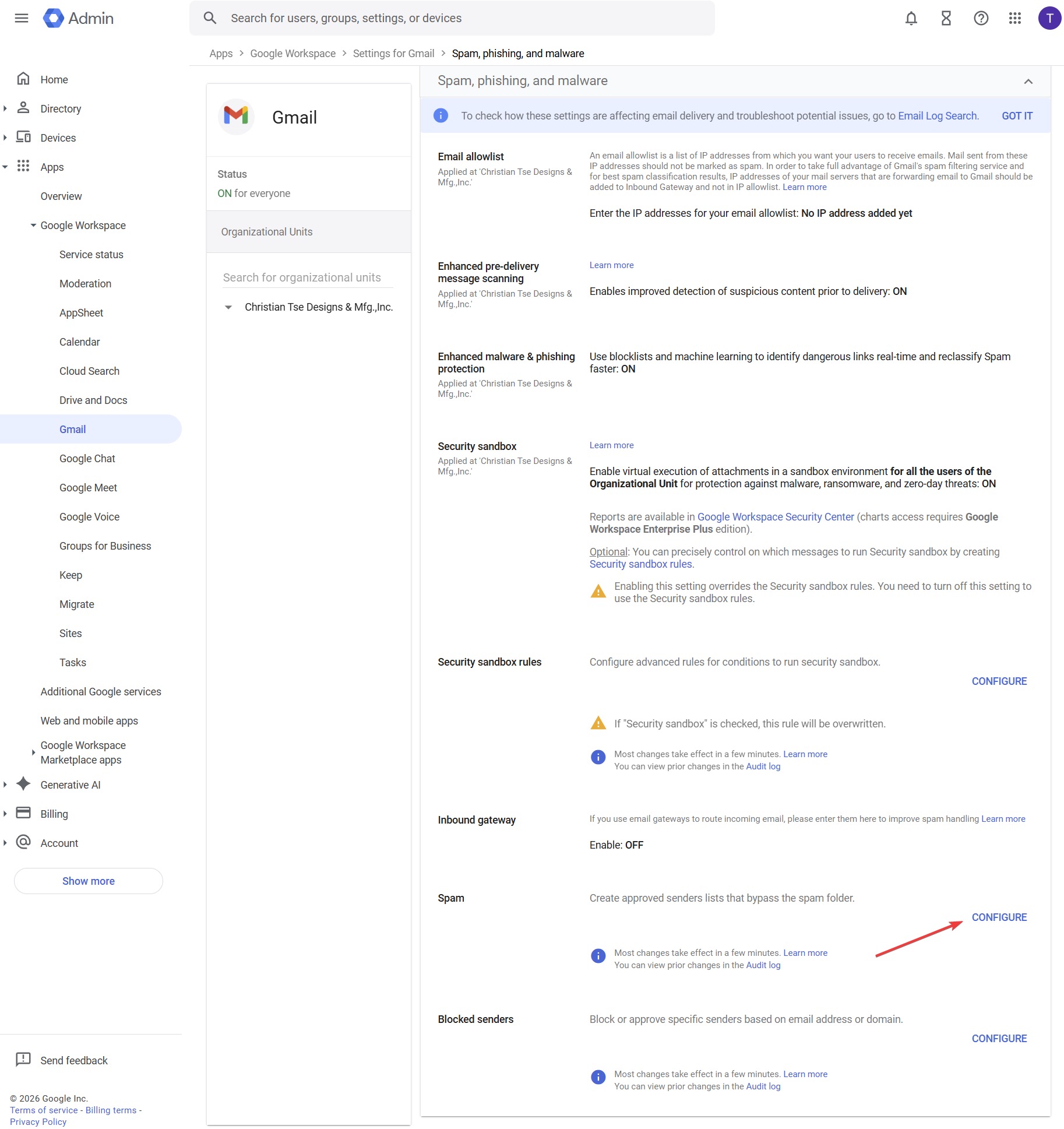
•In the left-hand menu, go to Apps > Google Workspace > Gmail.
•Scroll down and click on Spam, Phishing, and Malware.
Google Workspace Gmail spam settings location
3.Configure the Spam Rule:
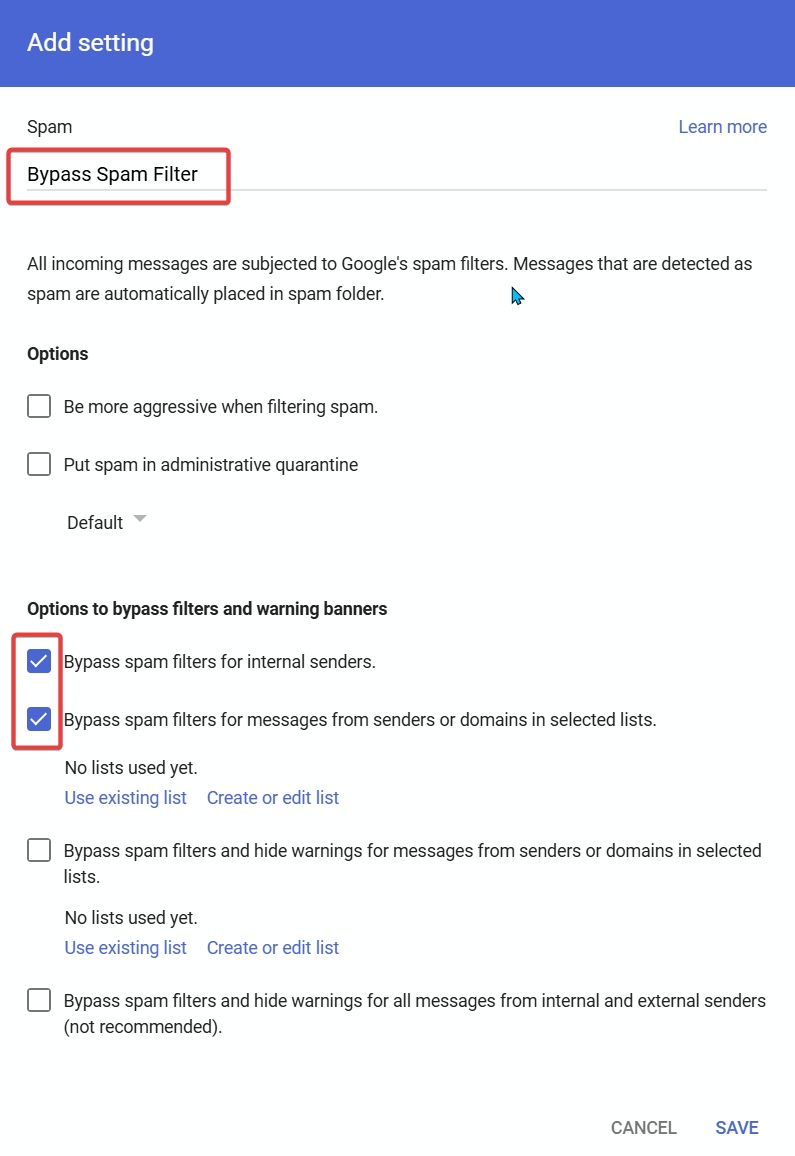
•Find the Spam section. If a rule hasn't been created yet, click Configure; otherwise, click Edit or Add Another Rule.
•Give the rule a name (e.g., "Allow NetworkThinking").
•Check the box: Bypass spam filters for messages from senders or domains in selected lists.
Bypass spam filters checkbox option
4.Create an Address List:
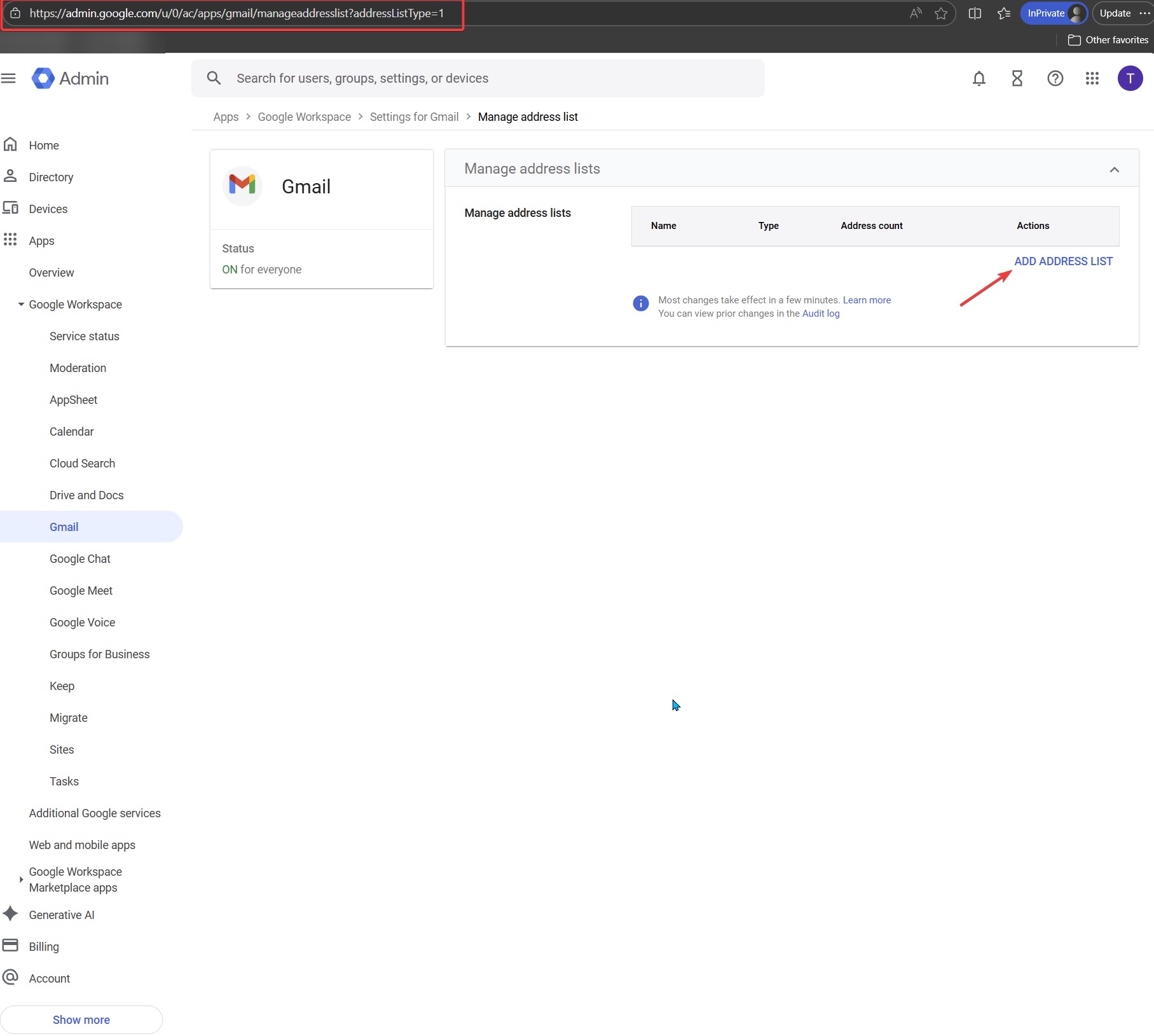
•Click Create or edit list.
•A new tab will open. Click Add Address List.
Manage address lists page
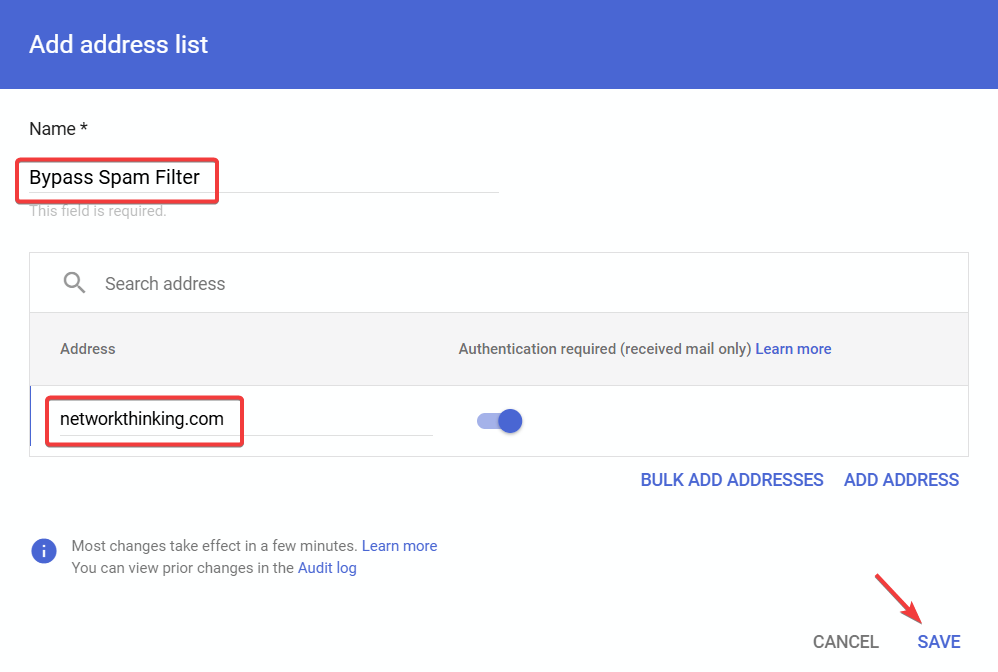
•Name the list "Trusted Domains" and click Add Address.
•Note: It is highly recommended to keep the Require sender authentication box checked. This prevents spoofed emails (scammers pretending to be from that domain) from bypassing your filters.
•Click Save on the address list.
Adding networkthinking.com to address list with authentication enabled
5.Apply the List:
•Go back to the previous tab (the Spam setting window).
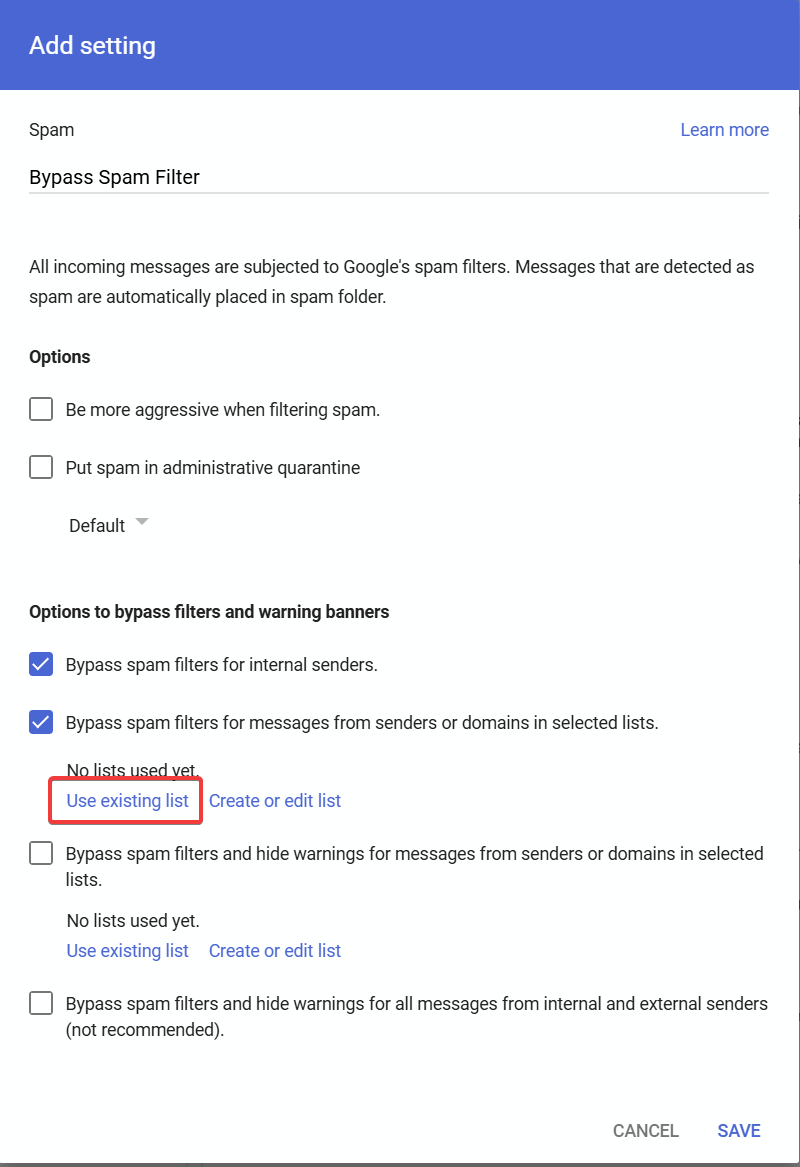
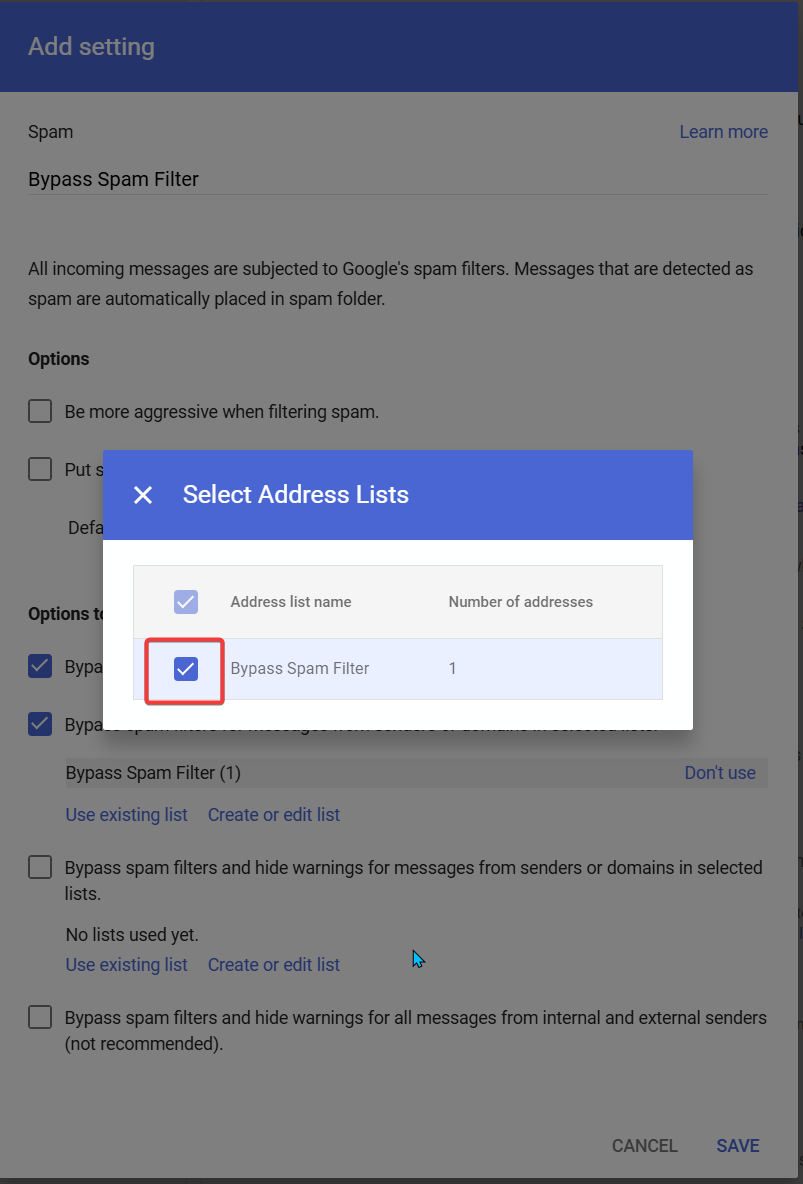
•Click Use existing list and select the list you just created.
Use existing list option
•Select your address list from the dialog.
Selecting the Bypass Spam Filter address list
•Click Save at the bottom of the page.

Verification and Testing

After saving, the rule will be active within a few minutes (allow up to 30 minutes in some cases).

Ask someone from networkthinking.com to send you a test email to confirm it arrives in your inbox.

Check the email headers to confirm that SPF, DKIM, or DMARC authentication passed.

Security Best Practices

Always keep 'Require sender authentication' enabled to prevent domain spoofing attacks.

Only allowlist domains that are trusted and necessary for your organization.

Review your approved sender lists periodically (quarterly or after major vendor changes).

Educate users to report suspicious emails even from allowlisted domains.

Troubleshooting

If emails still go to spam, verify the domain was entered correctly (no 'www' or protocols).

Check that the rule is applied to the correct organizational unit.

Confirm with the sender that their SPF, DKIM, and DMARC are properly configured.

Contact NTS support at support@networkthinking.com if issues persist.

Related Articles

Email Management

Create an Outlook Rule for CloudAlly Backup Failure Alerts

Step-by-step instructions for creating an Outlook rule that automatically handles CloudAlly backup failure alerts from support@cloudally.com.

Read article: Create an Outlook Rule for CloudAlly Backup Failure Alerts
Email Management

Viewing Email Headers for Troubleshooting and Security Analysis

Learn when to request full email headers, what they reveal about message delivery, and how to capture them in common mail clients before you open a support ticket.

Read article: Viewing Email Headers for Troubleshooting and Security Analysis
Identity

Google Authenticator Setup Guide for Google Workspace

Help users enroll in Google Authenticator for Google Workspace with platform-specific instructions, rollout tips, and backup best practices.

Read article: Google Authenticator Setup Guide for Google Workspace